

Parent-Teacher Conference
Date: Tuesday, May 5, 2026
| Time: | Format: | Location: |
| 4:00-5:30pm | Virtual Meetings | Online on Microsoft Teams (Meeting links are included in the emails automatically sent out by the booking system once appointments are successfully made. After joining the meeting, please wait for the teacher to let you in.) |
| 6:00-7:30pm | In-person Meetings | Classrooms at David Thompson |
To Book Appointments:
Booking Start Time: Wednesday, April 22, 2026 at 10:00am
Booking End Time: Wednesday, April 29, 2026 at 10:00am
Online booking:
*NEW: You can now book language support, if available, when you are making appointments*
Creating an Account
- Go to the address for your school:
The specific address will have been provided by your school. If you don't already have the URL please contact your school.
Click the Create New Account button.
Enter your name, email address, phone number, and choose a password.
Click Continue.
How do I change or reset my password?
- Go to the address for your school:
The specific address will have been provided by your school. If you don't already have the URL please contact your school.
Click the Forgot Password? link below the login form.
Enter your email address in the field and click Continue.
Check your email - follow the link contained in the email.
Enter your new password into the Password and Confirm Password fields and click Continue.
Your password has been updated - you can now log in as usual.
Scheduling Appointments
Click Make Appointments from the main menu.
Add a Student to your account by completing the form.
- if you have already added student(s) to your account you won't see this step
Select the Student(s) you would like to book appointments for from the list.

Choose a date, or a specific timespan, from the available options.

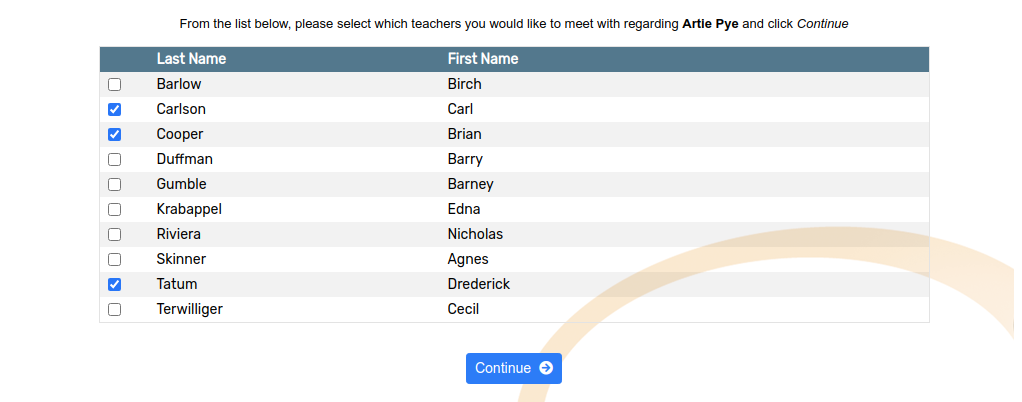
Choose the Teacher(s) which you would like to meet with from the available options.
- if you are scheduling appointments for more than one Student this step will be repeated
For each Teacher, use the dropdown menus to select from the available appointment times.
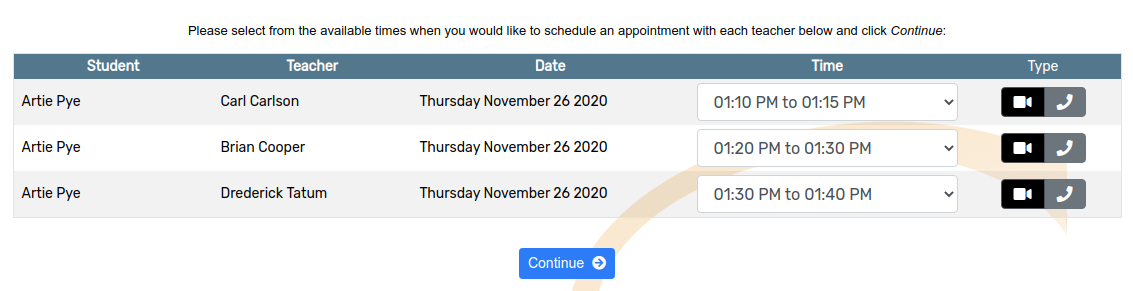
Click Continue to reserve your appointment times.
Requesting a Translator
If you need a translator to assist during your appointment, you can request one while scheduling:
This option will only be available if your school has enabled translator support.
- After selecting an appointment time, click the Add Translator button.

Choose an available translator from the list. Each translator's language is shown next to their name.
Click Continue to confirm your appointment with the translator.
The translator will join your appointment to help with communication.
Joining a Virtual Conference (4:00pm-5:30pm ONLY)
It's easy to join a video conference to meet with your children's teachers using OPTIS - a Virtual Meeting Room is automatically created for you whenever you book an appointment, all you have to do is click Join Meeting at the time of your appointment.
This option will only be available if your school has enabled Virtual Meeting Rooms
Click My Schedule from the main menu.
Each of your appointments will have a row appended underneath which contains the TEAMs link to join your
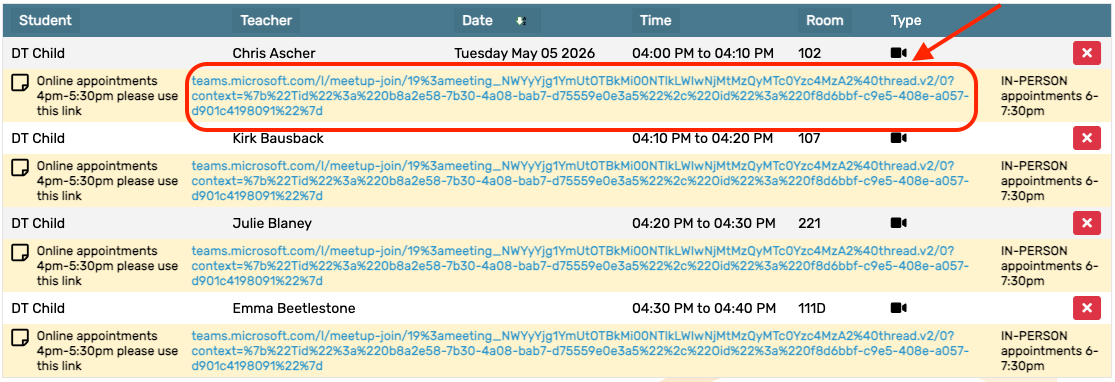
Click the TEAMs link.
A new browser tab/window will open.
If prompted, grant permission to your web browser to access your Video Camera and Microphone.
Please wait to be admitted into the TEAMs meeting by the classroom teacher.
Changing the time or date of an existing appointment
Click My Schedule from the main menu.
Find the appointment you would like to modify in the list of appointments.
Click the Edit Appointment button in the right-hand column of the appointment row.
Change the Date or Time of your appointment by using the dropdown menus to select from the available options>
Click Continue to save your changes.
Cancelling an appointment
Click My Schedule from the main menu.
Find the appointment you would like to cancel in the list of appointments.
Click the Cancel Appointment button in the right-hand column of the appointment row.
The Appointment has been cancelled.
Adding a child to your account
Click My Account from the main menu.
Click My Children from the dropdown menu.
Click Add Child.
Complete the First Name and Last Name fields.
Click Continue.
Printing your schedule
Click My Schedule from the main menu.
Click Printer-Friendly Schedule.
In the window that appears, select the destination and change your preferreed print settings.
Click Print.
Emailing a copy of your schedule
Click My Schedule from the main menu.
Click Email Me My Schedule.
Check your email - a copy of your schedule should be in your inbox.
If you don't receive an email within a few minutes please check your Spam or Junk folder - sometimes the message will be mistaken for spam